An AI Copilot for Your Freight Operation
The LojiMind AI isn't a separate chat window; it works inside the inquiry form, the load file and the Control Tower. The AI suggests, the code verifies, you decide.
Inquiry Copilot
A Customer's Sentence Becomes a Validated Inquiry in Seconds
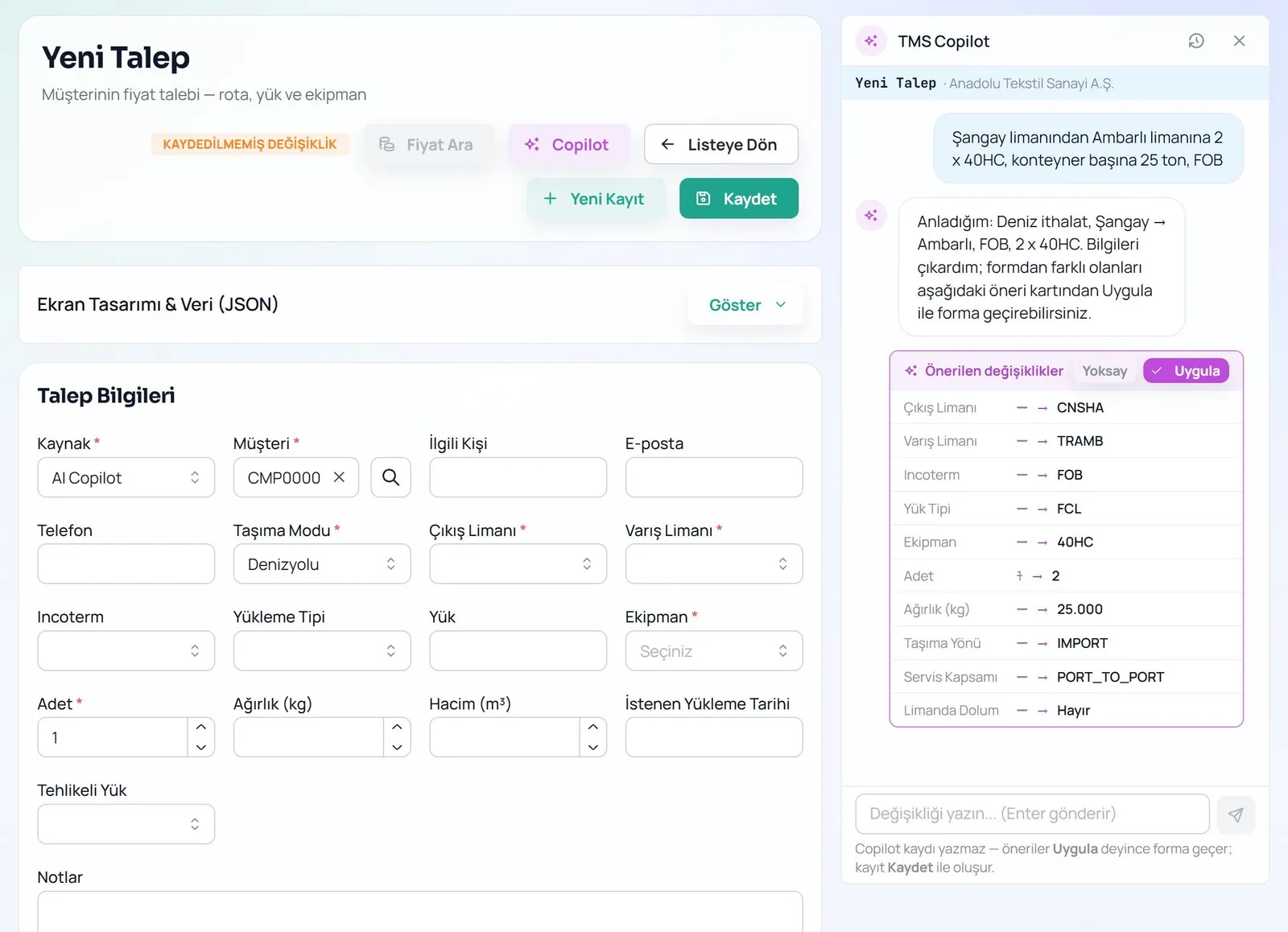
Paste or dictate the phone note or the request in an email. The Copilot extracts route, equipment, quantity, weight, date, incoterm, door addresses and dangerous-goods details, then shows what differs from the form on a suggestion card.
- It never guesses an ambiguous port; it asks: “Izmir — Alsancak or Aliaga?”
- A missing incoterm or address shows as a red blocker, missing tonnage as a yellow warning.
- Fields filled by the Copilot carry a ✦ badge, and Undo is always one click away.
Operations Copilot
Carrier Emails Become File Updates
Paste a carrier or agent message; the assistant compares it with the file and proposes individually approvable updates for ETA/ETD, vessel/voyage, transshipment, the four cut-offs, gate-in and free time.
- Ask “Am I at risk of demurrage?” or “What's my margin?” and get answers computed from the file.
- PDF, Word, Excel, CSV and .eml files become suggestions, and the document is archived too.
- Conversation history belongs to the file, not the user, so shift handovers lose nothing.
Document Reading
Even a Scanned Bill of Lading Becomes Data
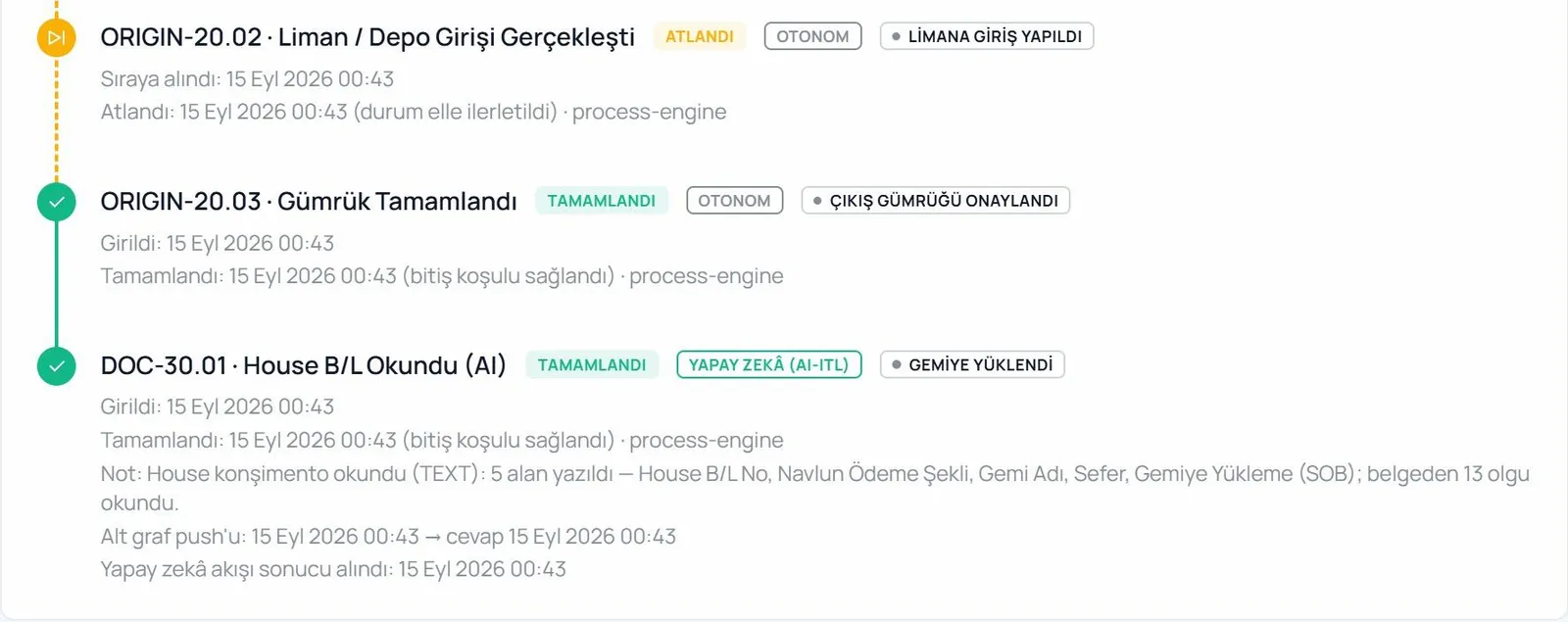
House and master bills of lading are read field by field. Values for the file arrive as suggestions, while parties, ports, packages, weights, container and seal numbers and HS codes are listed separately.
- The process engine handles a B/L uploaded to the archive on its own: “5 fields written — House B/L No, Vessel, Voyage…”
- Extraction rules are tuned per company in Copilot Settings.
- Every automatic write is recorded in the audit trail.
Buy-Rate Ingestion
A Supplier's Rate Sheet, Into Your Buy Tariff on Your Approval
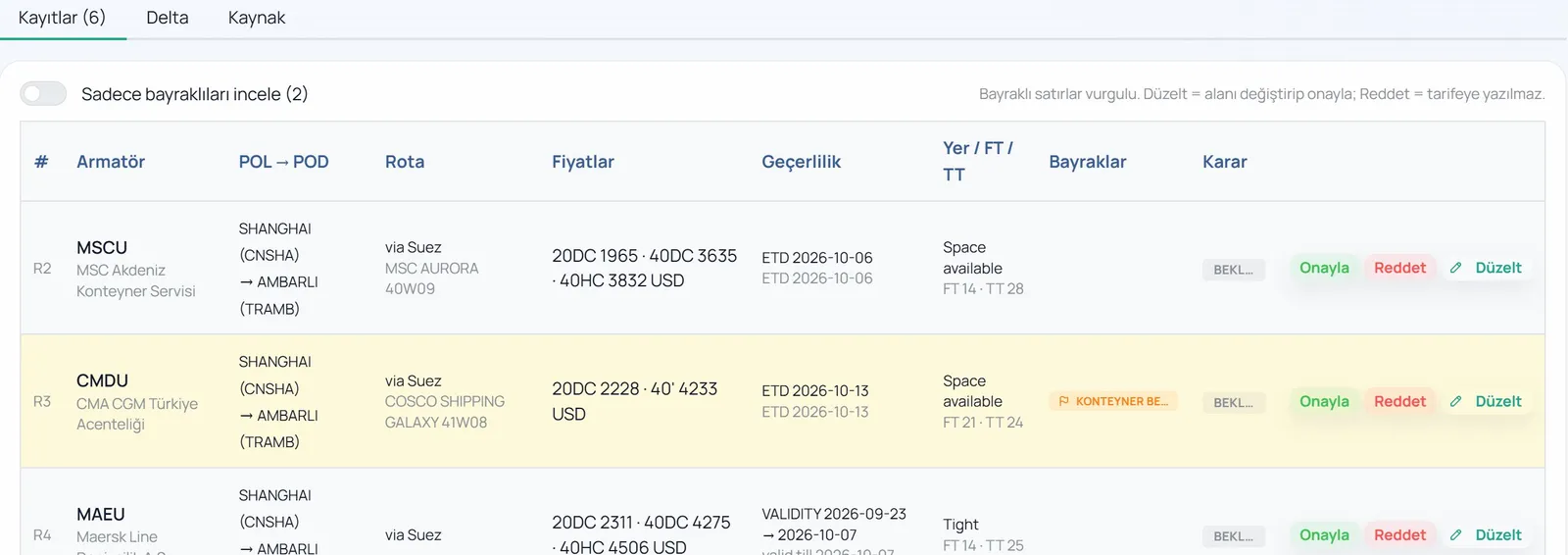
Paste the table from an agent's, carrier's, airline's or haulier's email, drop the .eml/.msg file, or let email from a configured supplier become an ingestion batch on its own. The Copilot reads the table and extracts carrier, origin and destination, routing, prices and validity record by record, flagging doubtful rows.
- It asks about what it cannot match: “Which port is ALY?”, “Which carrier is HPL?” The answer is saved to the supplier settings and never asked again.
- Nothing reaches the tariff on its own: you approve, reject or correct each record, and Write to Tariff is a separate button.
- The Delta tab compares with the previous sheet: new lanes, changed prices and lanes about to expire. Old rows are not deleted; they stay in history.
AI-Native Control Tower
A Control Tower That Explains Before You Ask
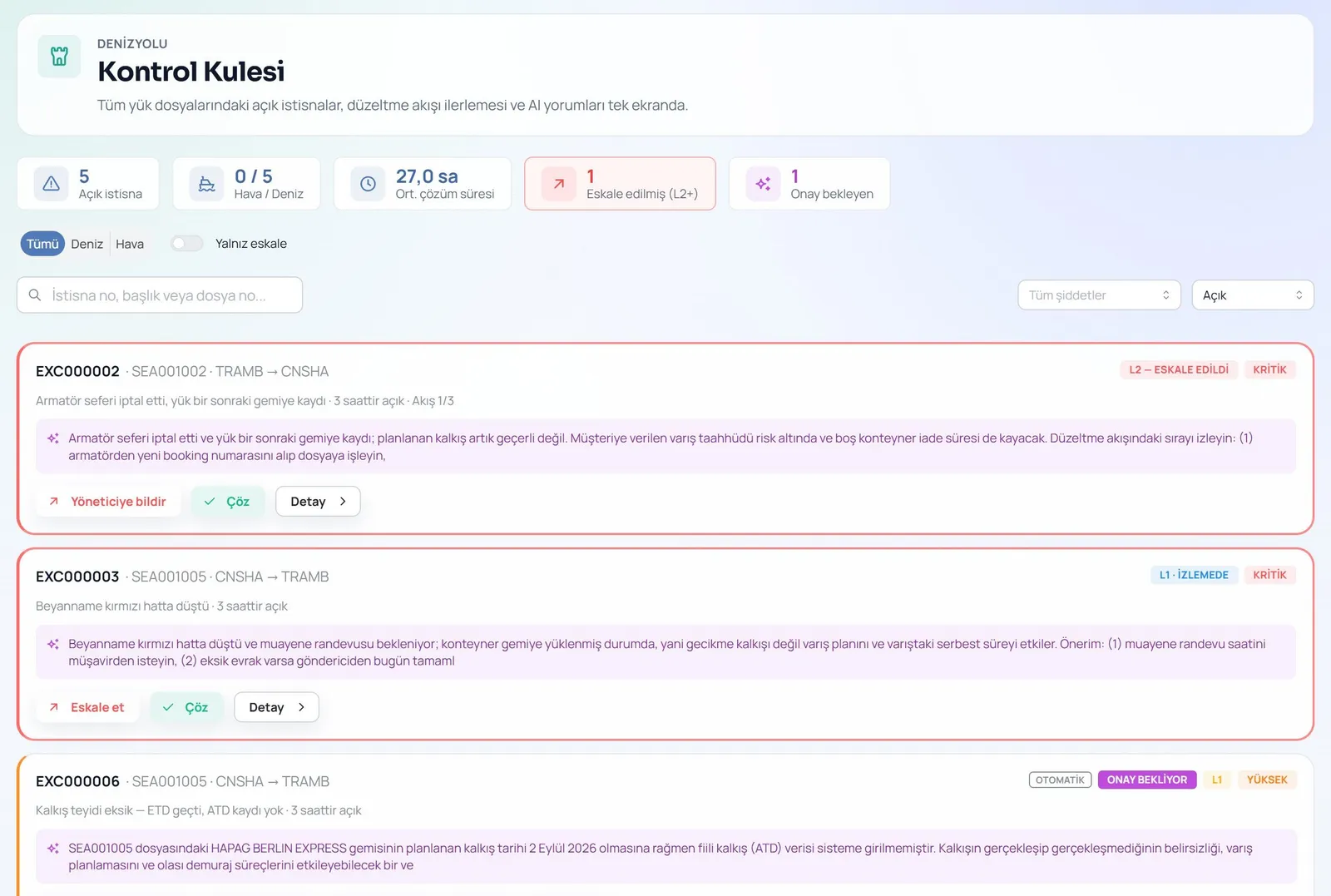
Every open exception across all files on one screen. The rule engine catches rollovers, rejected bookings, missed cut-offs, expiring free time and missing departure confirmations; for high and critical exceptions the AI writes its own assessment.
- A three-part note: What happened · Why it matters · Next steps.
- Unowned exceptions escalate automatically: critical after 2 h, high after 6 h, medium after 24 h.
- The note on a cut-off missed at midnight isn't written in the morning; it's written at 00:25.
Executive Supervisor Agent (ESA)
The Check You Wrote, on Every Process Step
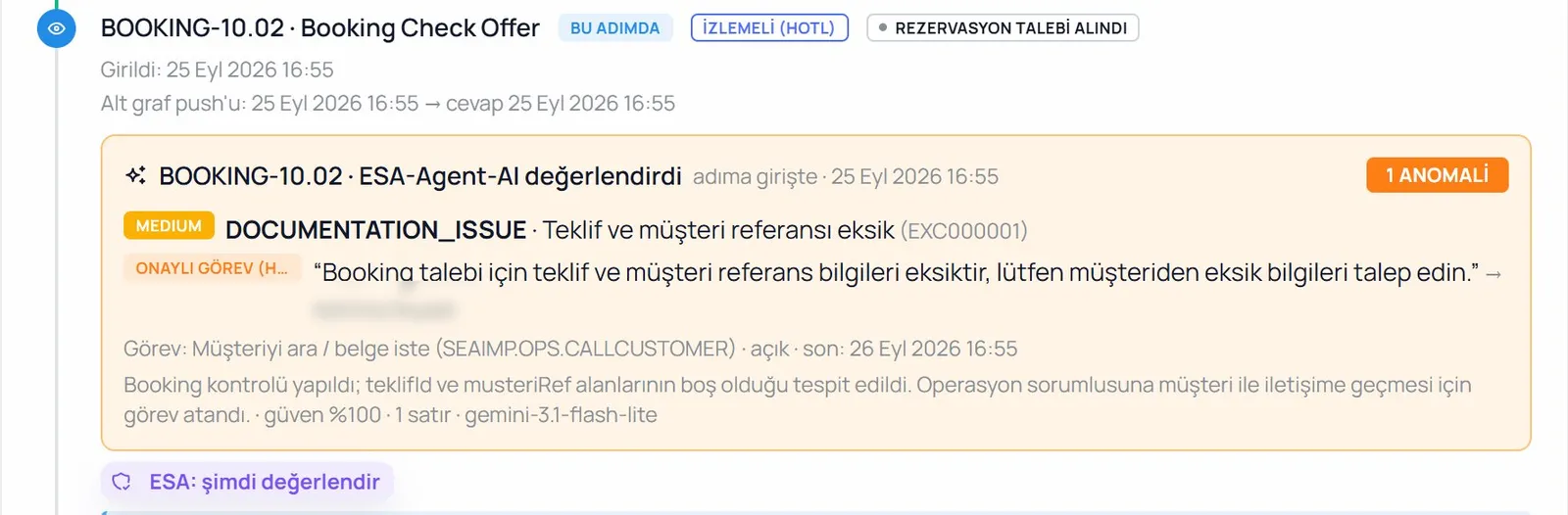
You write a plain-language instruction on a process step: “If less than 12 hours remain to the CY cut-off and the container has not gated in, open an exception”, or “At the delivery step, if the signed proof of delivery is not in the archive, assign a task to the operations owner.” When a file enters that step, ESA pulls the file's data and evaluates the instruction; if there is a problem it opens an exception, posts to the Control Tower or assigns a task to the right person. Otherwise it stays silent.
- Three task types: approval (escalates to the manager when overdue), monitoring (closes itself when the step completes) and an AI flow that reads a document and writes it to the file.
- It does not edit the file, advance its status or send email. Before going live, a dry run shows the model's answer without writing anything.
- Tasks from every file are listed on the ESA Tasks screen; exceptions ESA opens carry their own badge in the Control Tower.
Horizon · Duration Estimates
Know When Each Step Should Finish
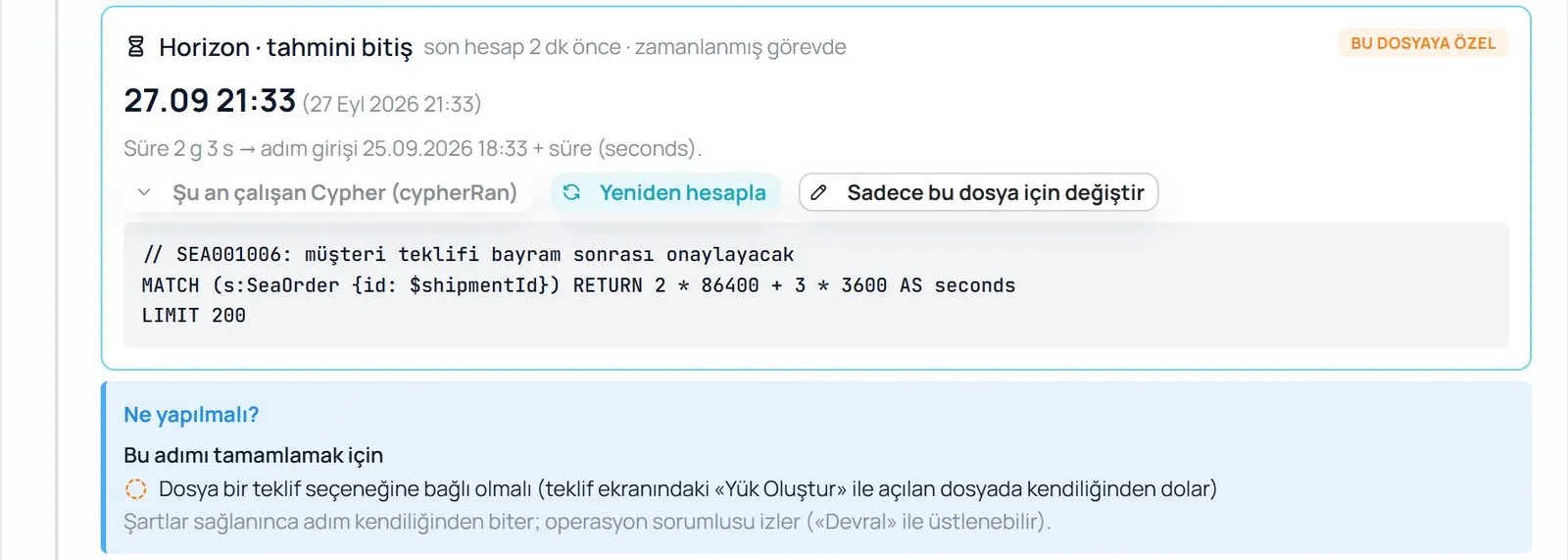
For each process step you write a plain-language rule: “median duration of this step over the last 90 days”, “2 days after cargo ready date”. The AI turns the rule into a query once, when you save it; after that the code computes the estimate on every file and no language model is called. The estimated completion shows under the step on the file's Process tab.
- If a step overruns the margin you set and is still open, Horizon opens one deviation exception; it lands in the Control Tower and the operations owner is notified.
- If one file is different, you change the rule for that file only; the definition and other files are untouched.
- Without history it does not invent an estimate; it says “No data”.
Human-Approved AI Workflows
The AI Prepares, a Supervisor Approves, the Flow Follows Up
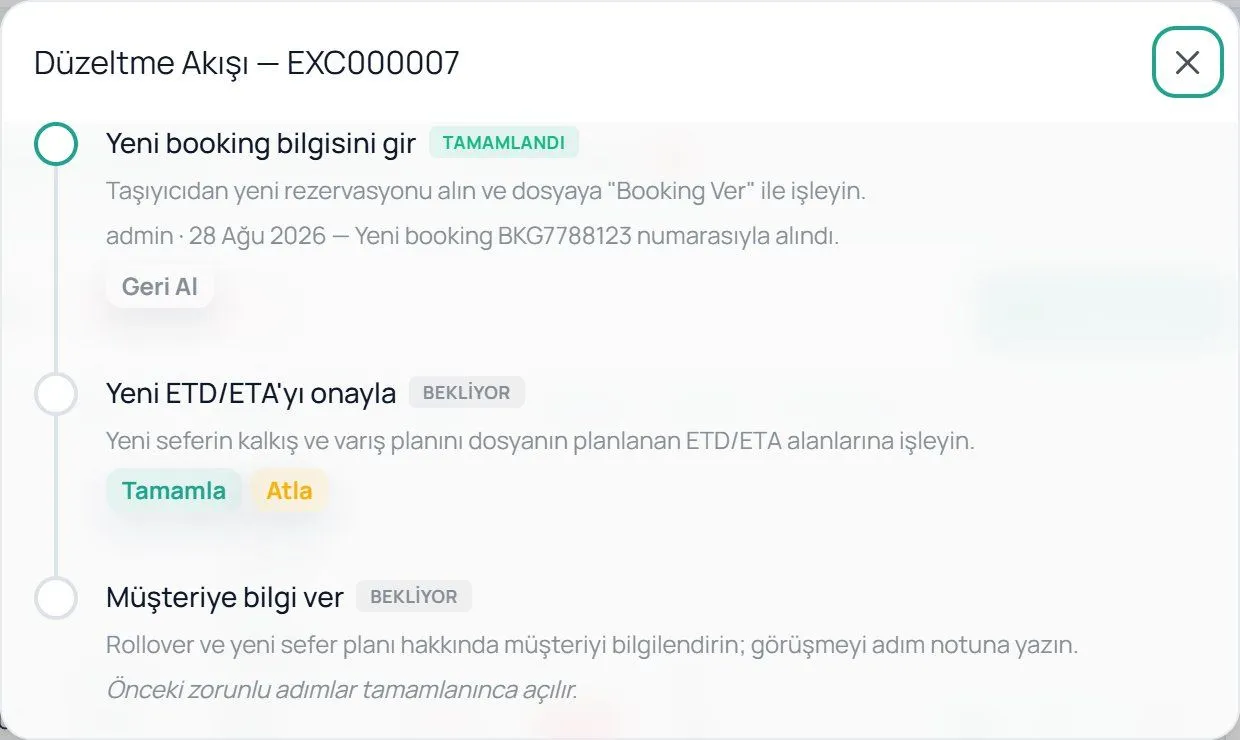
If the planned departure has passed and no actual departure is recorded, the AI assesses the situation and drafts the confirmation request to the carrier. An authorised person approves it; the flow can wait for days, survives restarts and closes itself once the departure is entered.
- Approval rights are role-based.
- Fix-up flows move step by step; every step is visible on the file and can be undone.
- The same foundation extends to every mode with new scenarios.
Model & Cost Control
You Choose the Model, You See the Cost
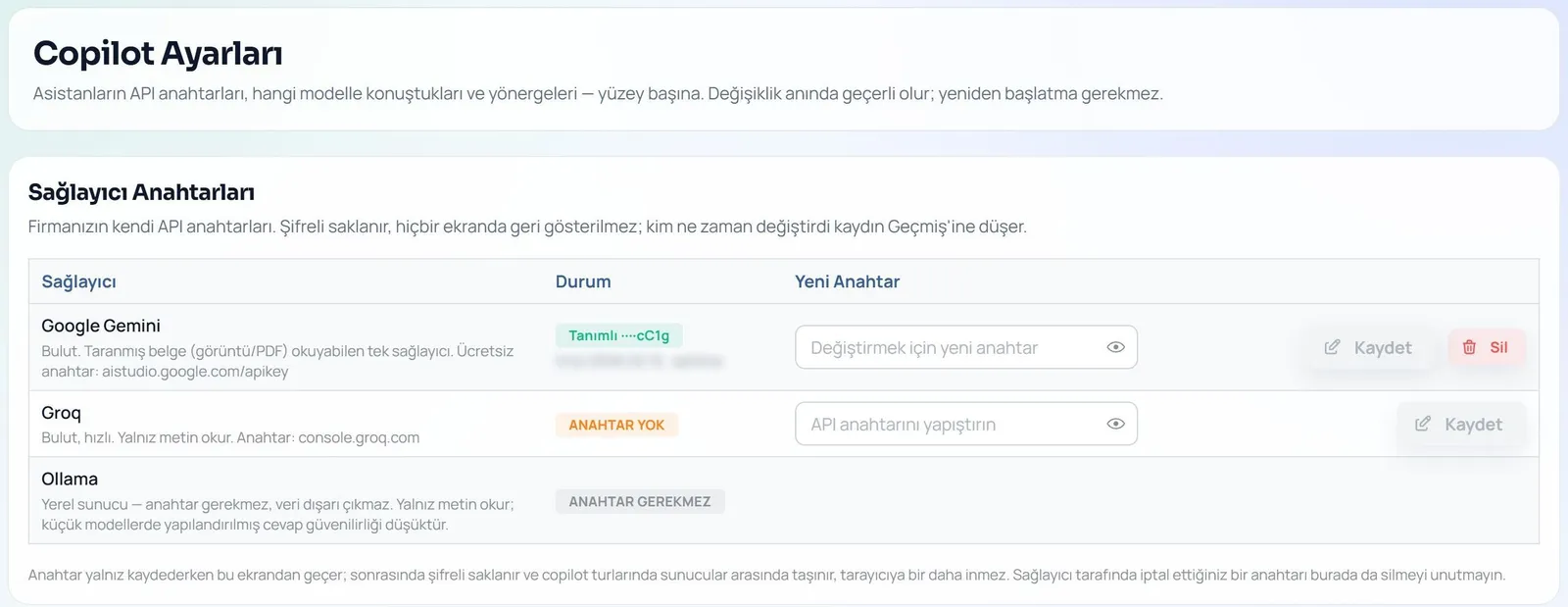
Each Copilot screen gets its own provider and model: Google Gemini, Groq or Ollama on your own server. Prompts are edited per company with full history, and the AI Usage screen reports tokens and estimated cost.
- Run fully local and data never leaves.
- Provider keys are stored encrypted and never shown again on any screen.
- Usage exports to CSV by copilot, model and user.
Small Helpers on Every Screen
Voice dictation
Press the mic and speak: thanks to a logistics glossary, “two forty HC” is written as 2x40HC. The text lands in the draft box and isn't processed until you send it.
Help Assistant
Opens with ? or F1 and knows which screen you're on. It answers only from the user guide, your process definitions and the error catalogue, with citations, and says so when it can't find an answer.
The Prompt Guides, the Code Guarantees
Each Copilot turn calls the language model exactly once, with schema-enforced output. Pure code then re-derives the rules, drops disallowed suggestions and writes the sentences the user sees.
- 1
You type
sentence, email, document, voice
- 2
The model extracts
one call, structured output
- 3
The code verifies
catalogue, rules, date maths
- 4
You decide
Apply · Ignore · Undo
The Whole Operation in One Knowledge Graph
In logistics, relationships already form a chain. LojiMind keeps that chain in Neo4j, so “Which inquiry did this invoice come from?” is a single traversal, and the Copilot answers every question with that context.
- Company
- Inquiry
- Quote
- Load
- Position
- Container
- Invoice
(:Company)-[:HAS_REQUEST]→(:Inquiry)→(:Offer)→(:SeaOrder)→(:SeaPosition)→(:Container)→(:Invoice)
The AI Suggests, the Code Verifies, a Human Decides
AI only adds value to your operation if you can trust it. In LojiMind every suggestion is visible, reversible and auditable.
Suggest first, save later
The Copilot fills in the form but never saves. Every change shows old → new; the record is created by your Save, and Undo is always there.
Code-level guarantees
Model output is re-checked in code: an invented port fails the catalogue check, and date maths is done by code, not the model.
Customer identity stays out
Customer names and identities are never sent to the language model; uploaded files are converted to text inside the platform.
Fully local AI option
Gemini, Groq or Ollama on your own server: you pick the model per screen. With a local model, data never leaves.
A separate database per company
Every customer's data lives on its own physical database server and in its own document archive; API keys are stored encrypted.
Audit trail and cost visibility
Every applied suggestion is logged under the user's name. The AI Usage screen shows tokens and estimated cost per copilot, model and user.
One Architecture, Four Modes
The Copilot's turn structure, document engine, Control Tower and approval flows are mode-independent; each mode adds only its own rules and vocabulary.
See the Copilot on Your Own Operations
In a demo, we'll try the Copilot together on your own inquiry emails and documents.
Request Free Demo